

You are here: Home > Get support > Help & advice > Independent Living > Magnifiers on iPhones and iPads
Magnifiers on iPhones / iPads
Did you know that the iPhone comes with a built-in Magnifier app that offers a variety of useful features?
Magnifier turns your iPhone or iPad into a powerful digital magnifying glass. It uses your device’s camera to enlarge anything you point it at, like a menu, leaflet or sign, so you can see the details clearly on your screen.
You can also use the flash for better lighting, adjust colour filters to see colours more easily, or freeze the screen for a close-up. If you’re using an iPad, you can even use Magnifier on one side of the screen while taking notes or writing an email on the other.
To locate your Magnifier, you can:
- swipe down on the Home screen and locate the magnifier symbol, or…
- click the Search button at the bottom of the Home screen and type ‘magnifier’.
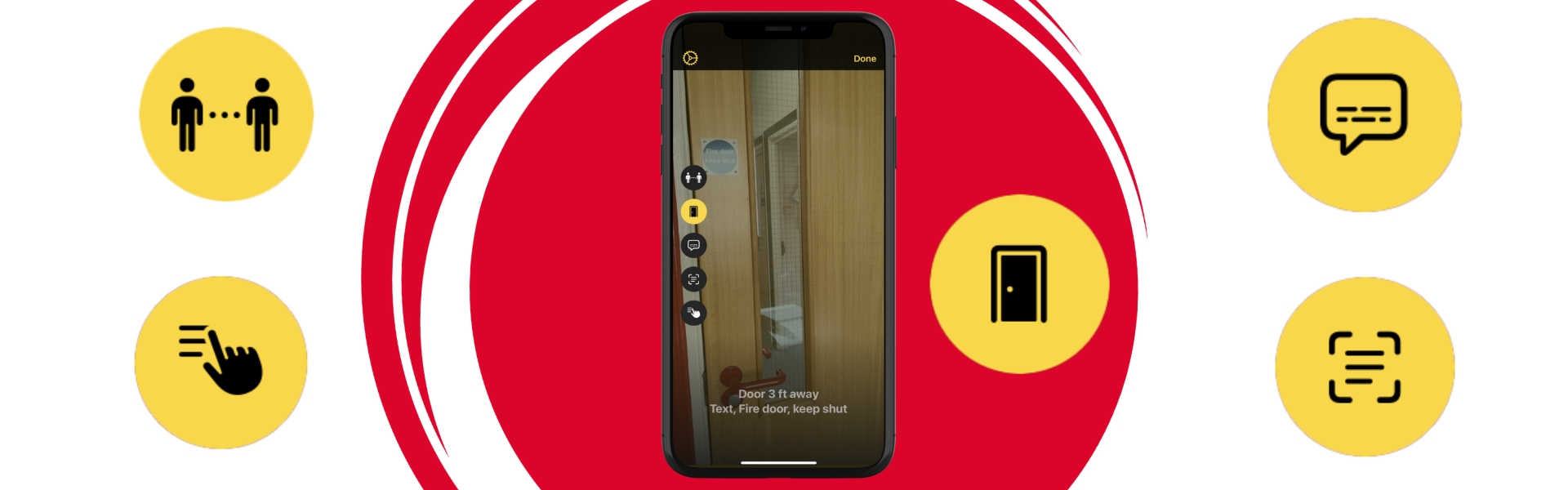
Detection Mode
Detection Mode within the Magnifier offers even more. If you can’t see the button ‘Detect’ then click on the cog wheel at the bottom of the app (Settings). In the ‘Other Controls’ section, click the green plus sign to move ‘Detection Mode’ up to the ‘Secondary Controls’ section and click ‘Done’. Ensure Detect says ‘Shown’ and not ‘Hidden’.
It provides helpful tools like:
- People Detection
Helps you know how close someone is to you, like when you’re in a queue. - Door Detection
Identifies doors and any symbols or signs near them, such as a toilet sign, a no-smoking sign, or an accessible entrance symbol. - Image and Text Description
Gives basic descriptions about people, images and objects and also scans the text too. - Point and Speak
Reads out loud the text on objects you point to, like buttons on household appliances, labels on files or keypads, making everyday tasks easier. Simply point your finger at different buttons and your device will read out load. Point and Speak works well with VoiceOver, enhancing your independence in daily tasks.
Published October 2025.